Uploading Documents
Supported formats, drag-and-drop uploads, file limits, folders, and document statuses.
Supported formats
Sidenote handles three document types, each with its own review experience:
HTML (.html, .htm) — your web page is rendered inside a sandboxed container with all its original styling intact. Reviewers can pin annotations to specific HTML elements with precise element-level targeting. The ideal format for reviewing websites, landing pages, email templates, and any web content.
PDF (.pdf) — rendered in-browser with page navigation. Reviewers draw rectangular regions on any page to pin their feedback. Page numbers are tracked automatically. Maximum file size is 15 MB.
Images (.png, .jpg, .svg, .webp, .gif) — displayed at full resolution. Reviewers draw rectangular regions to pin comments to specific areas. Good for design mockups, illustrations, ad creatives, and photography.
How to upload
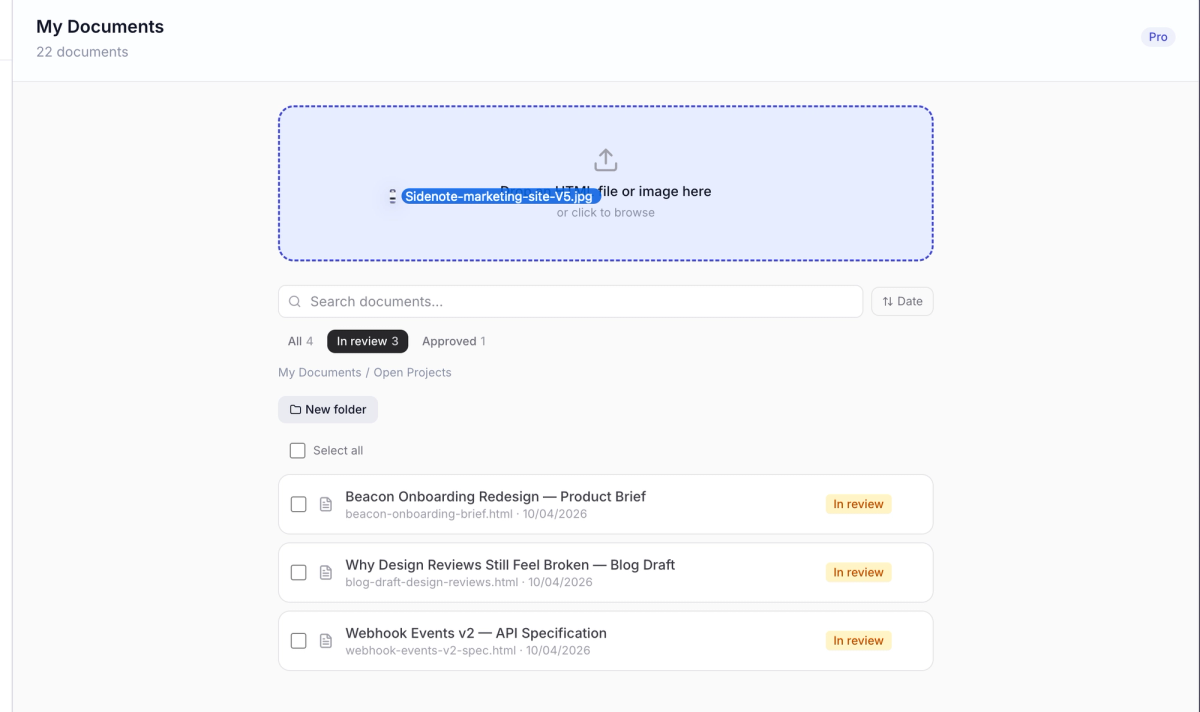
From the dashboard, click the Upload button in the top-right corner, or drag and drop files onto the upload area. Uploads land in the active workspace — the drop zone states the destination ("Uploading to Acme Agency") rather than asking — so if a file belongs somewhere else, switch workspaces first.
Each upload creates a new document in your dashboard with version 1 and a status of Draft.
In a team workspace, a new document is visible to the whole team by default; you can lock it to yourself from the review toolbar while you work, or lock several at once with Make private in the dashboard's bulk actions. In your own workspace there is nothing to lock — documents there are always yours alone.
Folders
Folders are personal-workspace structure. From your own workspace, click the + icon next to "Folders" in the sidebar to create one. Folders can be nested for deeper organisation.
To move a document into a folder, use the ⋯ menu on any document and select Move to folder. The breadcrumb trail at the top of the dashboard shows your current location in the folder hierarchy.
File limits
Limits follow the workspace that owns the document — a team document counts against the team's pool (including documents locked to their creator), and your personal workspace is governed by your own plan alone:
- Free: 5 active documents, 3 versions per document, 250 MB storage
- Pro: Unlimited documents and versions, 2 GB storage
- Team: Unlimited documents and versions, with storage pooled across the whole workspace (not per member). Team is not yet available to buy.
Archived documents don't count toward your active document limit, so archiving finished reviews frees up a slot on the Free plan. Archiving does not free up storage — the files are still kept. To reclaim storage, delete the document instead.
Document statuses
Every document has a status that helps you track where it is in the review cycle:
Draft — just uploaded, not yet shared. The default state for new documents.
In review — shared with reviewers and actively collecting feedback.
Approved — review is complete. Set this manually when you're satisfied with the outcome.
Archived — no longer active. Archived documents are hidden from the default dashboard view and don't count toward your document limit.
You can change status at any time from the document's ⋯ menu or from the review page.