How to Share HTML Documents Without Email Attachments
Sidenote Team
Email attachments break HTML documents. Send them as links instead. Here's how Sidenote deliverable links keep styling, scripts, and interactivity intact.
HTML documents rarely survive an email attachment. Styles break, scripts don’t run, interactivity vanishes. If you’re sending client deliverables, AI-generated reports, or interactive dashboards, email is the last place they belong. A shared link works better. Here’s why, and how to do it.
Why Email Attachments Don’t Work for HTML
When you email an HTML file as an attachment, the recipient downloads it and opens it locally. This sounds fine until styles stop working, linked resources don’t load, and embedded scripts fail silently. Email clients themselves strip out scripts for security. The document looks broken.
Email was never designed to be a document sharing platform. A 2025 study by the Email Markup Consortium analysing nearly half a million emails found that 99.89% had accessibility issues rated serious or critical. Roughly 1 in 6 legitimate emails never even reach the inbox, according to Validity’s deliverability benchmark.
HTML attachments compound the problem: corporate email security tools routinely block or strip them as a phishing vector — Outlook blocks over 50 file types by default, and Gmail blocks executables even inside compressed archives. Even when attachments arrive intact, styles break, linked resources don’t load, and scripts fail silently. Separate HTML, CSS, and JavaScript files make it worse: recipients get multiple attachments and no clear way to link them.
Even when a single .html file works locally, shared email recipients often don’t know to save it properly or find it hours later in a cluttered inbox. The document gets lost.
The solution is simple: stop sending attachments. Share a link instead.
Four Ways to Share HTML Documents Online
Not all methods are equal. Here’s what actually works.
1. Email Attachment (Don’t)
How it works: Attach the .html file directly to an email and send it.
Pros: Already in their inbox.
Cons: Scripts disabled. External resources broken. CSS often fails. Recipient must manage the file locally. No versioning. No access control.
This is the baseline. It’s broken. Every other option is better.
2. Cloud Storage Links (Google Drive, Dropbox)
How it works: Upload the HTML file to Google Drive or Dropbox, generate a share link, send the link.
Pros: Easy to set up. Familiar to most people. Good for non-technical recipients.
Cons: Heavy on permissions management. Recipient needs a Google/Dropbox account. File downloads as-is to their device, which means the same HTML attachment problems. Styles and scripts may still fail depending on local environment. Not designed for document delivery.
Best for: Quick file sharing with technical teams who understand HTML.
3. Static Site Hosting (Netlify, Vercel, GitHub Pages)
How it works: Deploy the HTML file to a static hosting service. Share the live URL.
Pros: Documents render correctly. All styles and scripts work. Can use custom domains. Scales to any number of viewers. Professional appearance.
Cons: Requires technical setup. Need a hosting account and familiarity with deployment. Overkill for one-off document sharing. No built-in access control (anyone with the link can view). No download option for recipients who want offline access.
Best for: Publishing live documentation, portfolios, or interactive dashboards publicly.
4. Sidenote Deliverable Links
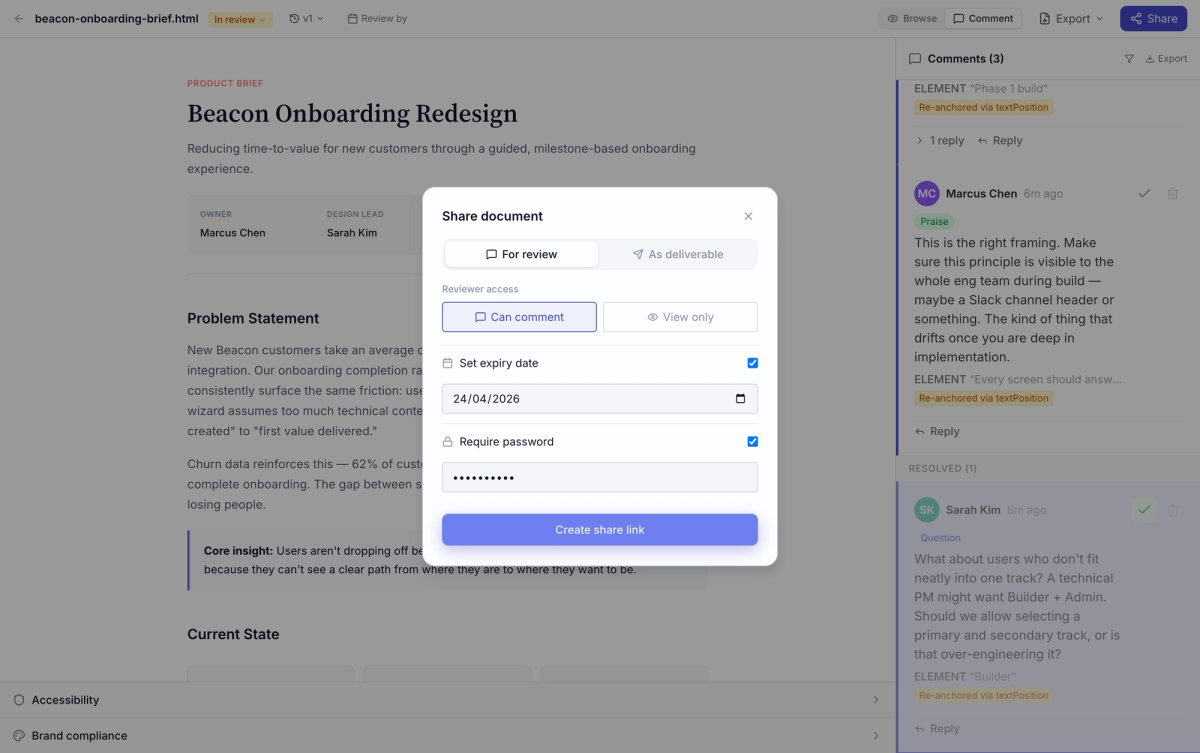
How it works: Upload your HTML document to Sidenote. Generate a shareable link. Recipients view the document in a clean interface, no account needed.
Pros: Documents render exactly as authored: all styles, scripts, charts, and interactivity work. No technical setup required. Recipients don’t need an account. Clean, branded link. Optional cover note, download button, password protection, and expiry dates. Sandboxed rendering (scripts run but can’t access parent page). Works for one-off shares or bulk distribution.
Cons: Requires uploading to Sidenote first. Paid plan needed for some features (custom slugs, password protection).
Best for: Client deliverables, approval workflows, interactive documents, internal distribution.
| Feature | Cloud Storage | Static Hosting | Sidenote Links | |
|---|---|---|---|---|
| HTML renders correctly | No | No | Yes | Yes |
| Styles work | No | No | Yes | Yes |
| Scripts run | No | No | Yes | Yes |
| No recipient account needed | Yes | No | Yes | Yes |
| Access control | No | Yes | Limited | Yes |
| Download option | Yes | Yes | Limited | Yes |
| Custom branding | No | No | Yes | Yes* |
| One-click setup | Yes | Yes | No | Yes |
*Custom slugs available on Sidenote Pro.
How Sidenote Deliverable Links Work
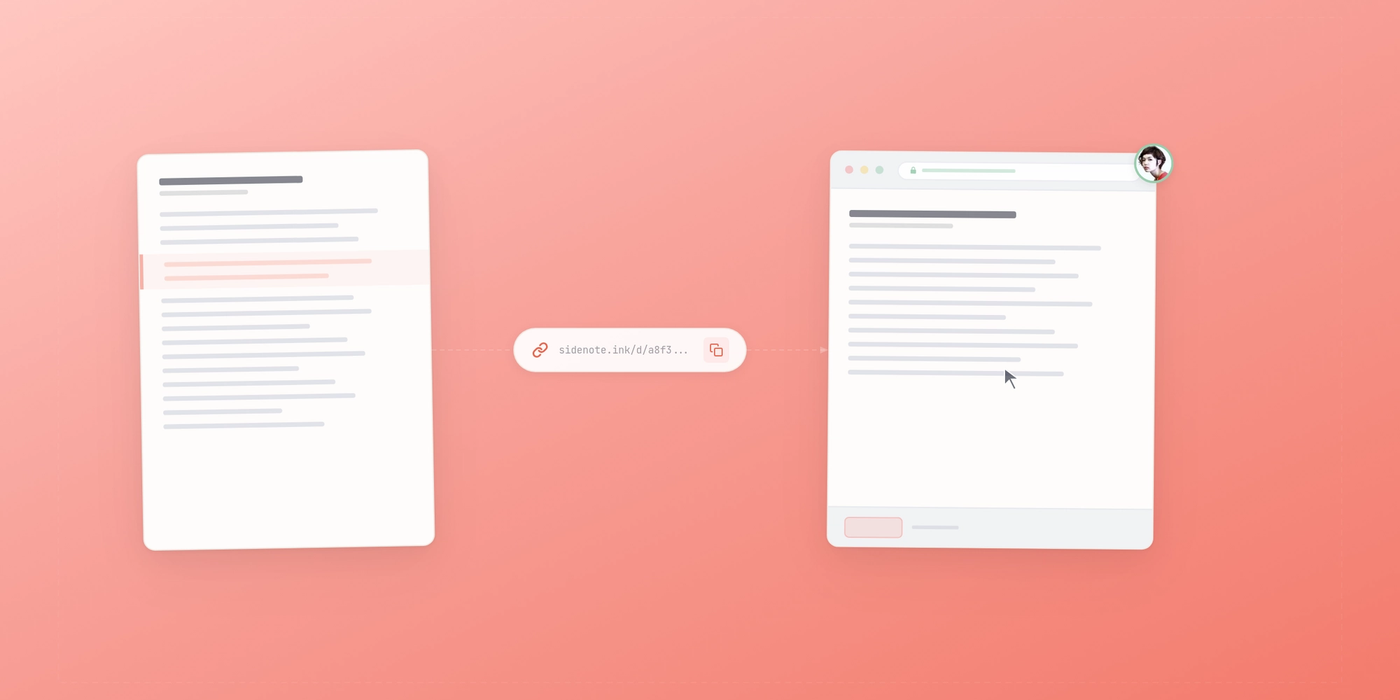
You upload an HTML document. Sidenote generates a clean, short link. You send that link to whoever needs it. They open it in a browser. The document appears in a focused viewer that handles all the rendering complexity for you.
Because the document is served from Sidenote’s infrastructure, every style, script, and embedded resource works correctly. Charts render. Dashboards update. Interactive elements respond to clicks. The document looks exactly like the author intended.
Recipients don’t log in. They don’t download anything unless they choose to. They just open the link and read.
If you want more control, you can add a cover note (displayed before the document), restrict access with a password, set an expiry date so the link stops working after a certain date, or enable the download button. For documents that need review and feedback, you can enable Sidenote’s annotation features so reviewers can highlight text and leave inline comments. But a basic deliverable link works without any of these extras.
Real Use Cases
Client Deliverables: Send a proposal, report, or specification as HTML instead of a PDF. Keeps formatting intact, lets clients download a copy if they want, and no email attachment issues.
AI-Generated Documents: Use Sidenote to review AI-generated content with your team, then share the final version as a deliverable link so stakeholders can see the result without needing to download anything.
Interactive Data Visualizations: Share a dashboard or visualization built with D3, Chart.js, or similar libraries. Interactivity works. Recipients can explore the data.
Design Prototypes: Designers often export interactive prototypes as HTML. Sidenote deliverable links let you share these without static image previews or clunky attachment processes.
Internal Distribution: Use deliverable links for training materials, onboarding documentation, or policy guides. Track who accesses what. Set expiry dates for temporary information.
FAQ
Can recipients download the document?
Yes. If you enable the download button (it’s on by default for deliverable links), recipients can download the HTML file to keep offline.
Do viewers need a Sidenote account?
No. Deliverable links work for anyone with the URL. No login required. You can add password protection if you want to restrict access further.
How long do deliverable links last?
Forever by default. You can set an expiry date when you create the link, so it stops working after a certain date. Useful for time-sensitive information.
Can I customize the link URL?
Default links are short and random. Sidenote Pro lets you set custom slugs, so you can have sidenote.ink/your-project instead of sidenote.ink/abc123.
What about security? Are scripts safe?
Scripts in the document run in a sandboxed environment. They can’t access cookies, local storage, or the parent page. They run only within the document context, so they’re safe.
Stop Sending Attachments
Sign up at sidenote.ink and share your first document as a link. Free plan includes 5 documents.
Want to add review and feedback before sharing? Read what Sidenote is, or see how it compares to Google Docs and Figma for document review.