How to Annotate a PDF: A Practical Guide for Teams
Sidenote Team
Learn why traditional PDF annotation breaks down for teams and how element-level annotation with tools like Sidenote creates scalable, AI-ready review workflows.
PDF annotation is one of those tasks that sounds simple until you're three rounds deep into a review cycle, juggling comments across email threads, Slack messages, and marked-up files that nobody can find. Whether you're reviewing a design mockup, a client proposal, or an AI-generated report, the way you annotate matters more than most people think.
This guide covers the practical ways to annotate a PDF: the tools everyone knows and the approaches that actually scale for team workflows.
What Does It Mean to Annotate a PDF?
Not all annotation is created equal. The type you need depends on what you're trying to communicate:
Markup: highlights, underlines, strikethroughs. You're flagging what needs attention without explaining why. Useful for proofreading and quick passes.
Communication: comments, replies, threaded discussions. You're having a conversation about specific parts of the document. This is where most team review happens.
Approval: stamps, signatures, status indicators. You're making a decision (approved, rejected, needs revision). The endpoint of a review cycle.
Most tools handle the first category well. The second and third are where things start to break down, especially when more than one person is involved.
The Standard Approaches
Adobe Acrobat
The original and still the most feature-complete option. Acrobat gives you the full toolkit: highlights, comments, drawing tools, stamps, form filling, and redaction. With over 50% of the PDF editor market (6sense), it's the default for a reason.
Adobe has invested in cloud collaboration: real-time co-commenting, @mentions, and PDF Spaces for organizing shared reviews. If you're working solo or in a small team with a Creative Cloud subscription, it handles most annotation tasks well.
Where it strains is at scale. Web-based reviews cap at 250 participants and 1,000 comments per file. Email-based reviews (still common in enterprise workflows) prevent reviewers from seeing each other's feedback entirely. And the cost adds up: Acrobat Pro for Teams runs $23.99 per user per month. A 50-person team pays nearly $14,400 a year before adding the $4.99/user AI Assistant.
Google Drive
Upload a PDF to Google Drive and you can add text comments directly in the preview. It's free with any Google Workspace plan, it's familiar, and for simple sign-off workflows ("approve this" or "change that heading") it works.
The limitations show up fast. Google Drive's native PDF markup tools (freehand pen, highlighter, eraser) are only available on Android. Not on iOS, and not on the web. The December 2025 viewer update improved navigation with a sidebar and thumbnails but added no new annotation tools. There are no shapes, no measurement tools, no redlining, and no structured approval workflows. If you're reviewing anything design-heavy, you'll hit the ceiling within minutes.
There's also a documented cross-platform issue: pen annotations made on Android can delete comments that were added through the web interface. Not exactly confidence-inspiring for multi-device teams.
How to Annotate a PDF on Mac
Apple Preview is an underrated option for individual annotation. It packs a surprisingly complete toolkit: highlights, freehand drawing, shapes (rectangles, ovals, arrows, stars, speech bubbles), text boxes, sticky notes, signatures, redaction, and a magnification loupe. With iPadOS 26, Preview also came to iPhone and iPad with Apple Pencil support.
The catch is that Preview is a strictly single-player experience. No real-time collaboration, no threaded comments, no annotation version history. Sharing means exporting a copy via AirDrop or Mail. Apple's own iWork apps support 100-person real-time collaboration, but Preview has never received those features.
For quick individual markup, it's excellent. For anything involving a team, you'll need something else.
Browser-Based Tools
Tools like Smallpdf, Kami, Hypothesis, and newer entrants like DocHub, Lumin PDF, and Xodo offer browser-based annotation without installing anything. They're convenient and most offer free tiers for light use.
The problem isn't any individual tool. It's the fragmentation. Each one locks annotations into its own format. When different team members pick different tools, feedback scatters across platforms and nobody has a single source of truth. Hypothesis annotations, for example, are literally invisible to anyone not running the browser extension.
Tool Comparison
| Tool | Platform | Collaboration | AI Features | Starting Price | Best For |
|---|---|---|---|---|---|
| Adobe Acrobat Pro | Desktop, Web, Mobile | Co-commenting, shared reviews (250 cap) | AI Assistant ($4.99/mo add-on) | $23.99/user/mo (teams) | Full-featured individual + small team use |
| Google Drive | Web, Android (limited) | Text comments only | Gemini integration (Workspace) | Free (included with Workspace) | Quick sign-off on text-heavy docs |
| Apple Preview | macOS, iPadOS | None | None | Free (built-in) | Individual markup on Mac |
| Smallpdf | Web | Limited (Pro) | Basic AI summarization | $10/mo individual, $8/user/mo teams | Light annotation, quick edits |
| Kami | Web | Classroom-focused | None | $12/mo individual, $25/mo work | Education / K-12 |
| Hypothesis | Web (extension) | Group annotations | None | Free individual, ~$4/user/yr institutional | Academic research |
| DocHub | Web | Limited | None | $10/mo | Google Workspace users |
| Xodo | Web, Desktop, Mobile | Real-time markup (Connect) | None | $7.99/mo (web) | Cross-platform teams |
Why Traditional PDF Annotation Breaks Down for Teams
Most PDF annotation tools were designed for a world where one person marks up a document and sends it back. That model doesn't hold up when multiple reviewers are involved, timelines are tight, and feedback needs to actually reach the person (or system) that can act on it.
Version control chaos. Research consistently shows this is a structural problem, not an occasional inconvenience. 83% of knowledge workers lose time every day to document versioning issues: searching for the right file, discovering they edited an outdated copy, or manually reconciling conflicting changes (Perforce/Harris Interactive, n=1,004). In creative workflows specifically, 57% of deliverables require three to five rounds of revision and 25% require six or more (Ziflow/AMA, 2023).
Feedback fragmentation. When comments live in email threads, Slack messages, and annotated PDF copies simultaneously, nobody can see the whole picture at once. 90% of account managers say waiting for feedback slows them down, and alongside chasing people for approval it was one of the two biggest problems reported (Filestage, 2023, n=366).
Annotations locked to the format. PDF annotations are embedded in the file itself. They can't be queried, filtered, assigned, or tracked without opening each file individually. When you need to understand the status of feedback across a batch of documents, you're back to manual work.
No integration with production workflows. Knowledge workers spend 60% of their time on "work about work": chasing approvals, switching between tools, and duplicating effort (Asana Anatomy of Work Index, n=10,624). And only 28% of creative professionals spend more than half their day on actual creative work (Ziflow/AMA, 2023). The review layer is disconnected from the production layer, and teams absorb the cost in hours.
Element-Level Annotation: A Different Approach
The limitations above aren't bugs in any specific tool. They're consequences of treating annotation as markup on a file rather than structured data about content.
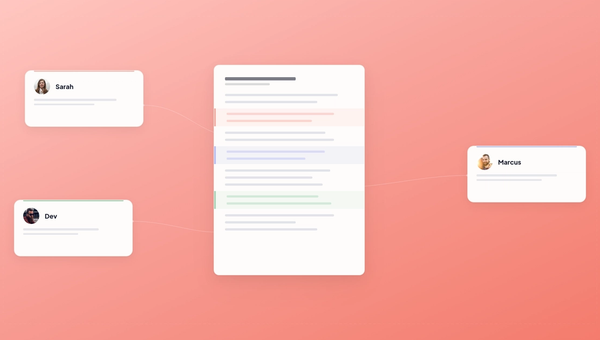
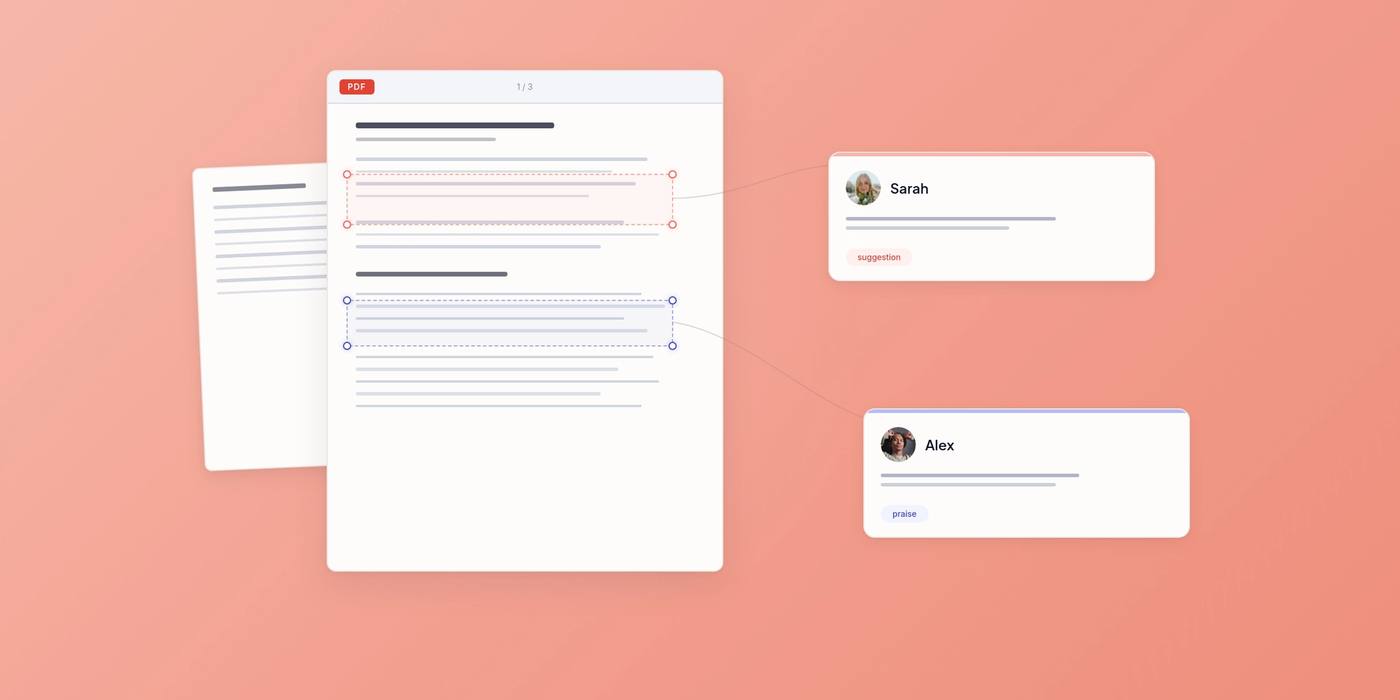
Element-level annotation flips that model. Instead of embedding comments inside a PDF, you annotate the content itself: a heading, a paragraph, an image, a specific region on the page. Each annotation becomes a structured record. Who said what, about which element, with what priority, linked to a thread.
This matters for three reasons.
Comments become queryable. Instead of opening every PDF to check for unresolved feedback, you can filter, sort, and search across all documents. "Show me all unresolved suggestions on the Q2 proposal" becomes a query, not a scavenger hunt.
The same workflow works across formats. A PDF, an HTML page, and an image can all go through the same review pipeline. The annotation layer isn't coupled to the file format. (For more on why HTML is becoming the default document format for agentic workflows, see Why HTML Is the New Document Format.)
AI agents can participate. When annotations are structured data (not visual markup embedded in a binary file), AI systems can read, categorize, and act on them. An agent can triage feedback, flag conflicting comments, or draft revisions based on reviewer input. 88% of companies now use AI in at least one business function (McKinsey, 2025), but less than 1% of enterprise unstructured data is in a state AI can actually consume (IDC). The bottleneck isn't AI capability. It's getting human feedback into a format AI can consume.
Documents reviewed through Sidenote work this way. Every element can be annotated independently. Comments are threaded, searchable, and accessible via API, including through an MCP server that lets AI agents participate in the review process directly.
How Teams Actually Use PDF Annotation
Design review. An agency exports a brand guide as PDF and uploads it for client review. The client's team annotates specific elements: "this color doesn't match our Pantone spec," "swap the hero image." Feedback is threaded per element, not buried in an email chain. The designer sees exactly what needs to change and where.
Legal and compliance. A compliance team reviews a policy document. Annotations flag specific clauses that need revision, with priority levels and assigned owners. When the document is updated, the team can see which annotations have been resolved and which are still open, without comparing PDF versions side by side.
AI-assisted content production. An AI agent generates a first draft as a document. A human reviewer annotates it with corrections and suggestions. Because the annotations are structured, another agent can read them, implement the changes, and submit a revised version for the next review round. The feedback loop is continuous, not manual.
Choosing the Right Approach
If you're annotating PDFs solo (marking up a paper for personal reference, signing a contract, highlighting a report) Preview on Mac or Adobe Acrobat will serve you well. They're mature tools that handle individual markup excellently.
If you're running team reviews where feedback needs to be consolidated, tracked, and acted on, the equation changes. The comparison table above shows the trade-offs. The key question isn't which tool has the most annotation features. It's whether your annotations can leave the PDF and become part of your workflow.
The document management systems market is projected to grow from $7.7 billion to $18.2 billion by 2030 (Grand View Research), driven largely by hybrid work and the need for cloud-based collaboration. The tools that capture that growth won't be the ones with the best highlighter. They'll be the ones that treat review feedback as structured, actionable data.
Start Reviewing Smarter
If your current annotation workflow involves emailing marked-up PDFs and hoping everyone's looking at the same version, there's a better way. Sidenote brings element-level annotation, threaded comments, and AI-ready feedback to your document review process. Start reviewing for free.